How i turned my old laptop to home for my AI agent

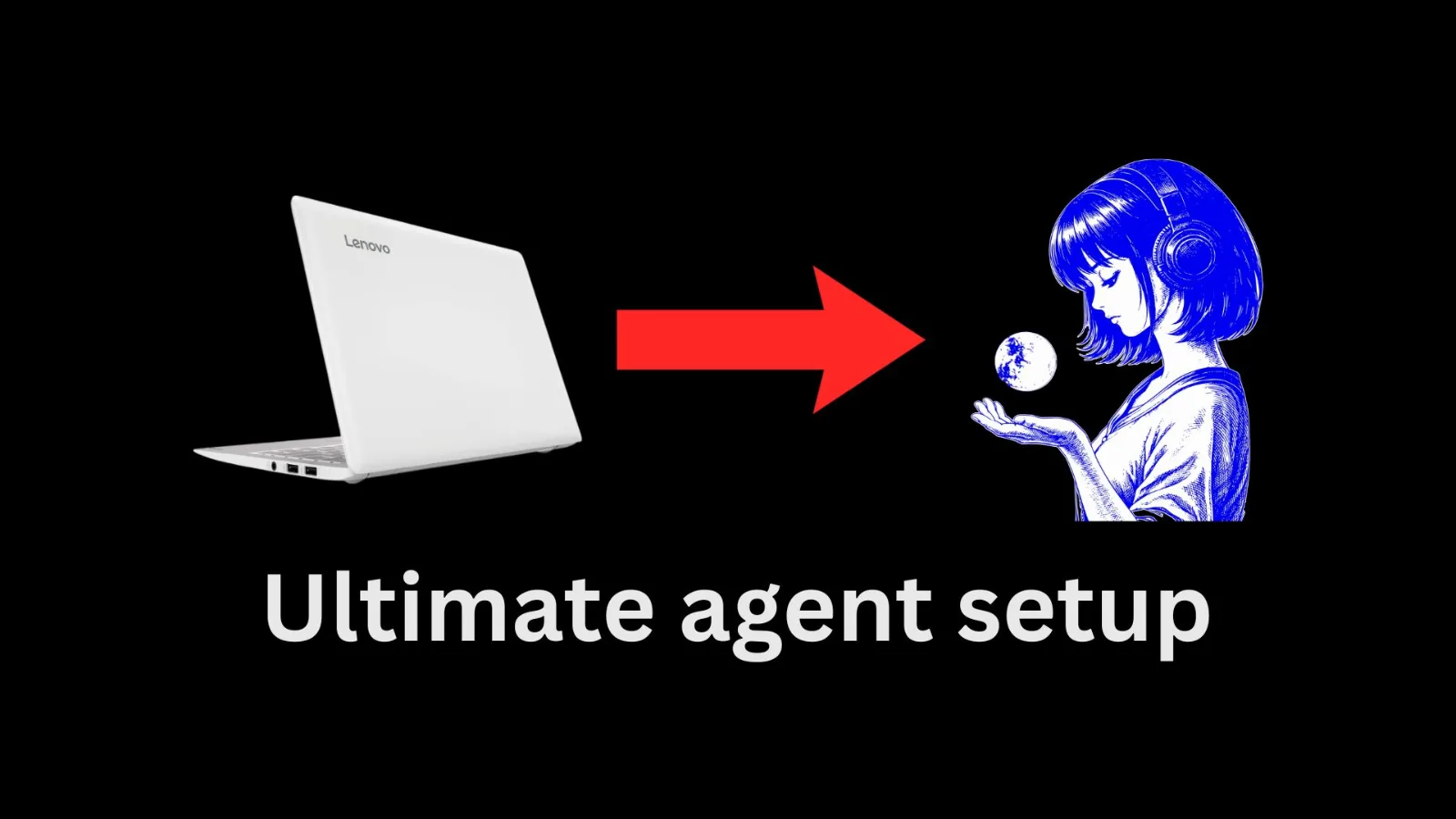
I had a old laptop at home and didn't know what to do with it. Firstly, i wanted to make it server for my website but i thought that is not good idea for public projects. So decided to install Fedora server on this laptop and make it home for my Hermes agent with Podman, Caddy and Tailscale.
Note: Some of them optional. It's good to use them for security.
At first, needed check my old friend if it's still alive. I booted it up and i saw my old Linux Mint setup.
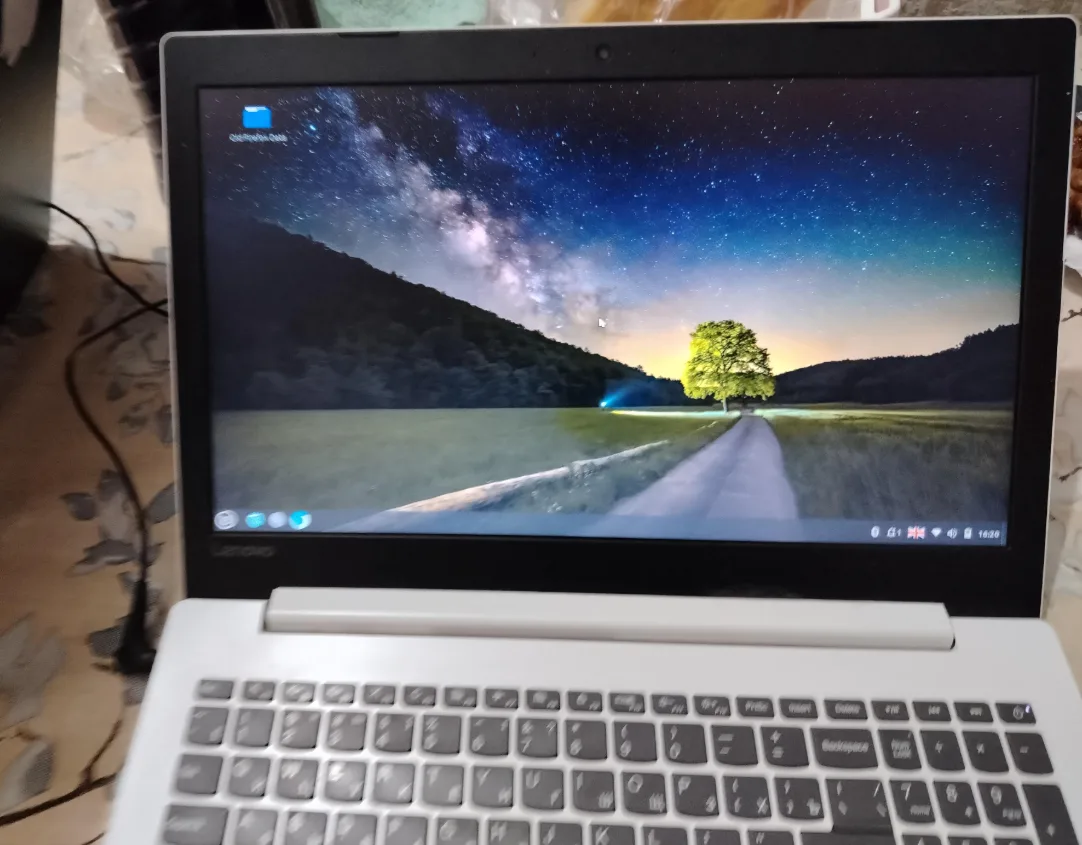
Linux Mint is nice but i think we need a minimal operating system. I had some options:
Ubuntu Sever
Fedora Server
Omarchy Linux (because of https://omarchy.org/potato/)
I currently use Fedora and like it, so i choose Fedora Server, burned its iso to my usb drive and started to install.
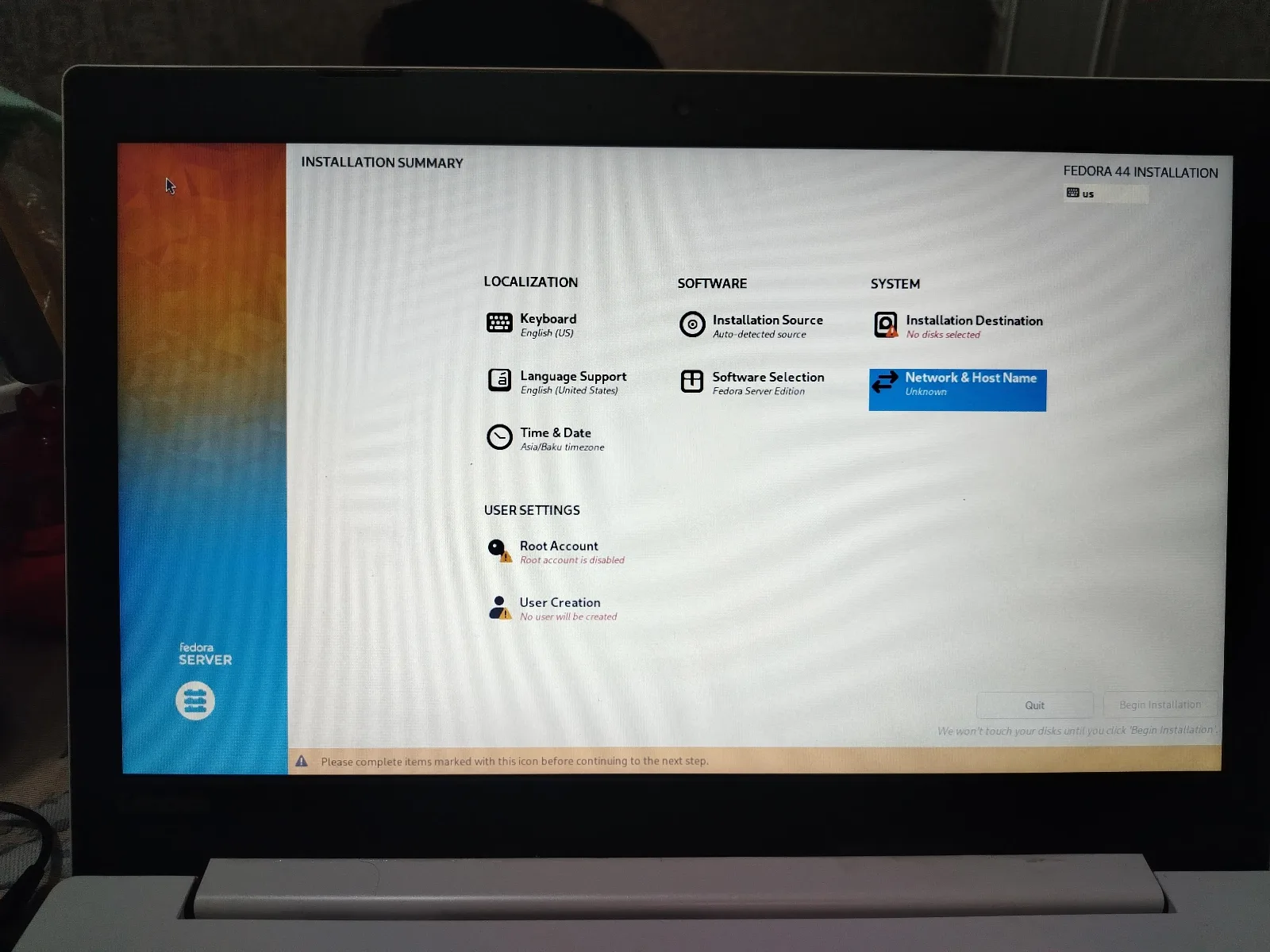
Fedora Workstation use BTRFS as its default filsystem, it's XFS in Fedora Server, i liked it. And finished the installation process.
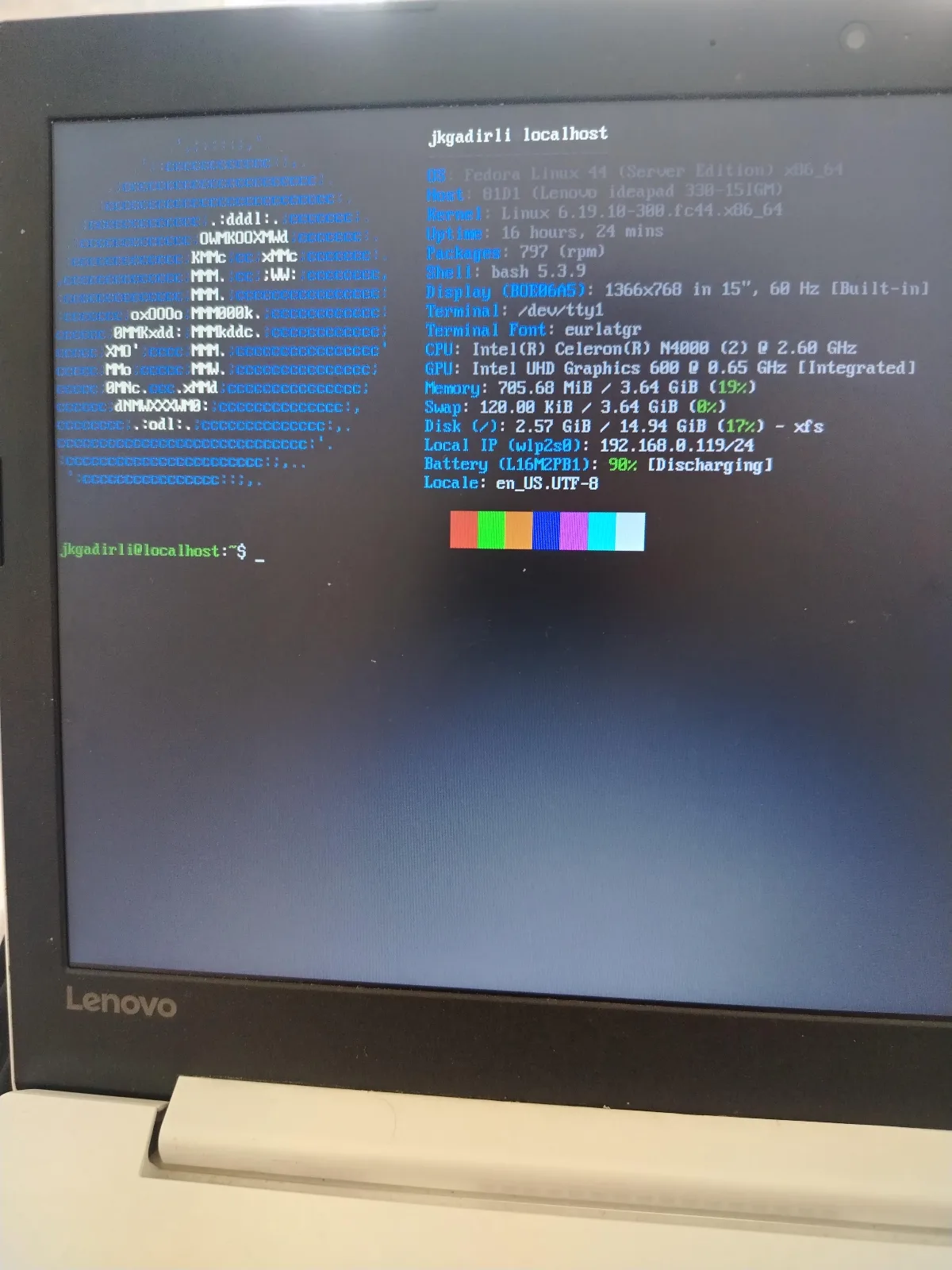
And, it is. Now we have a server. We need some software now. Let's install and check them. Before all, we need OpenSSH, because we need to control it from our main PC.
sudo dnf install -y openssh-server
sudo systemctl enable --now sshd
Allow SSH through the firewall:
sudo firewall-cmd --permanent --add-service=ssh
sudo firewall-cmd --reload
Check if it's running:
sudo systemctl status sshdIf it shows enabled we can do our next step. For now, we need to control it in our private network. So we need to learn local ip adress with:
hostname -IIt will show your local ip. Now we can operate all things on our main PC. After switvhing to main PC, let's connect to this laptop server via SSH:
ssh username@SERVER_IPIf everything is okay, we're in.
Now we can install our needed software. I wanted to started with my favorite container engine - Podman. It comes with Fedora server out of the box. You can use this containers for security if you want. Let's check if it's working.
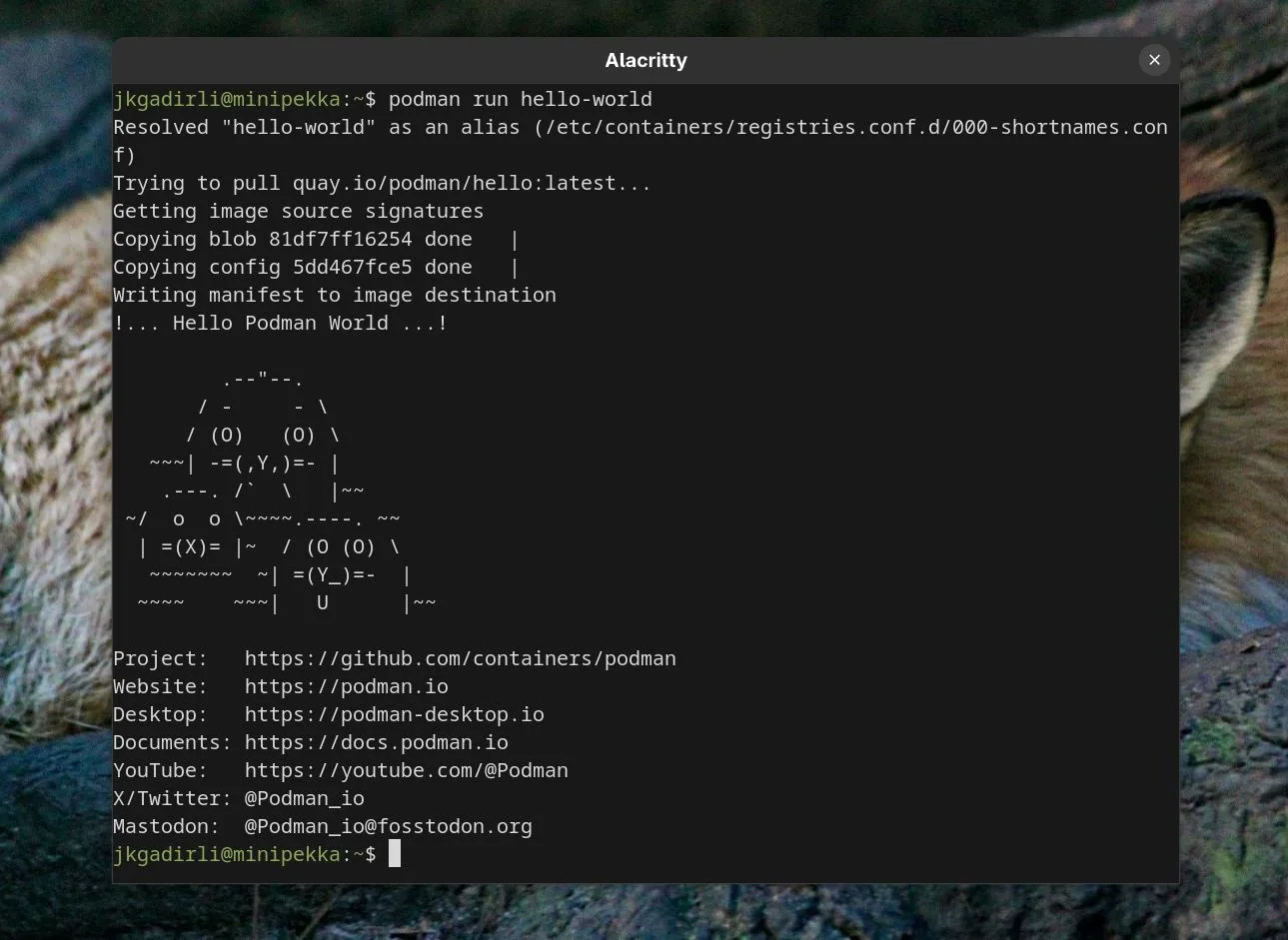
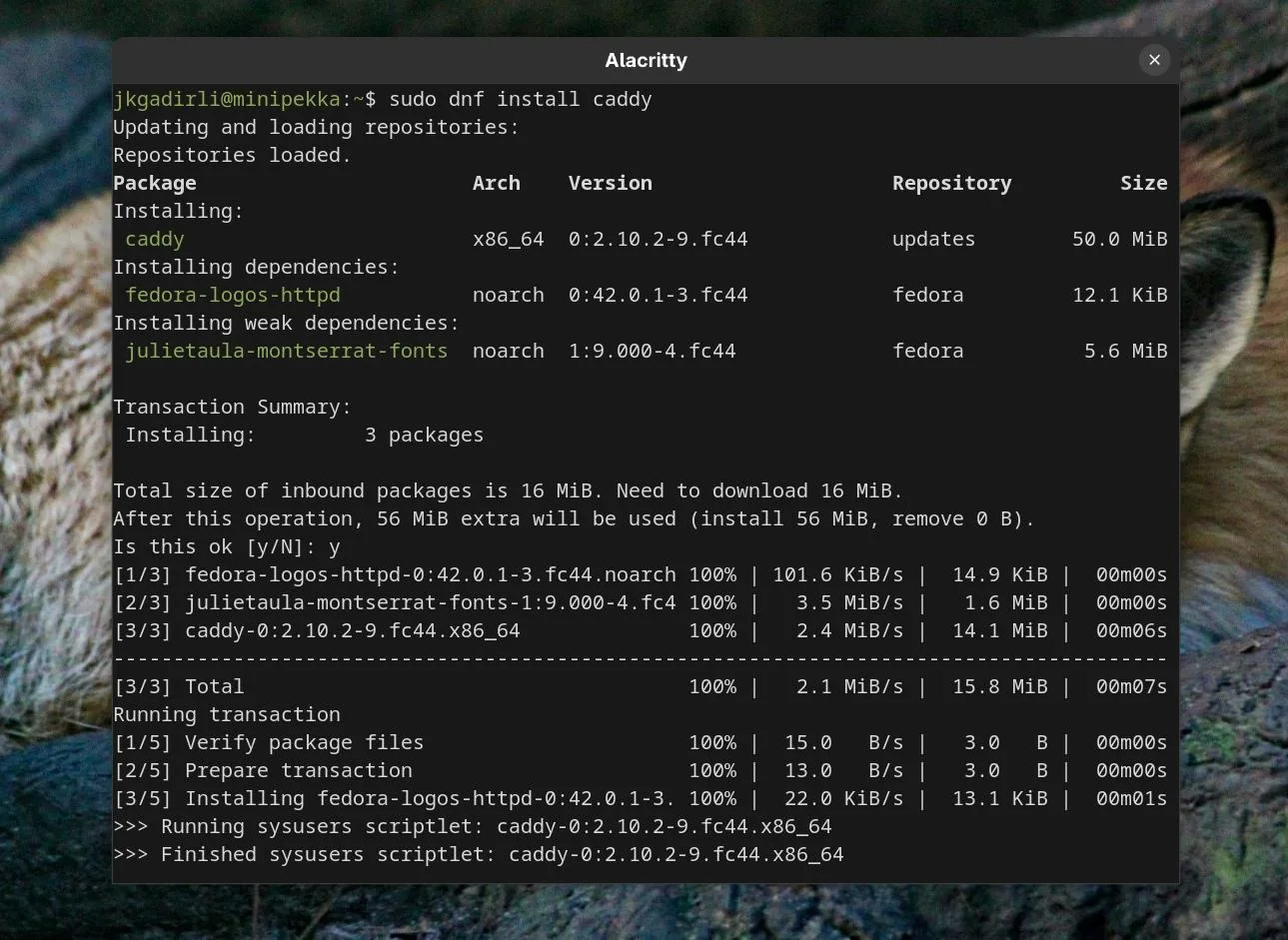
It works. And we can install Caddy if we want it to use with our domain.
And let's activate it.
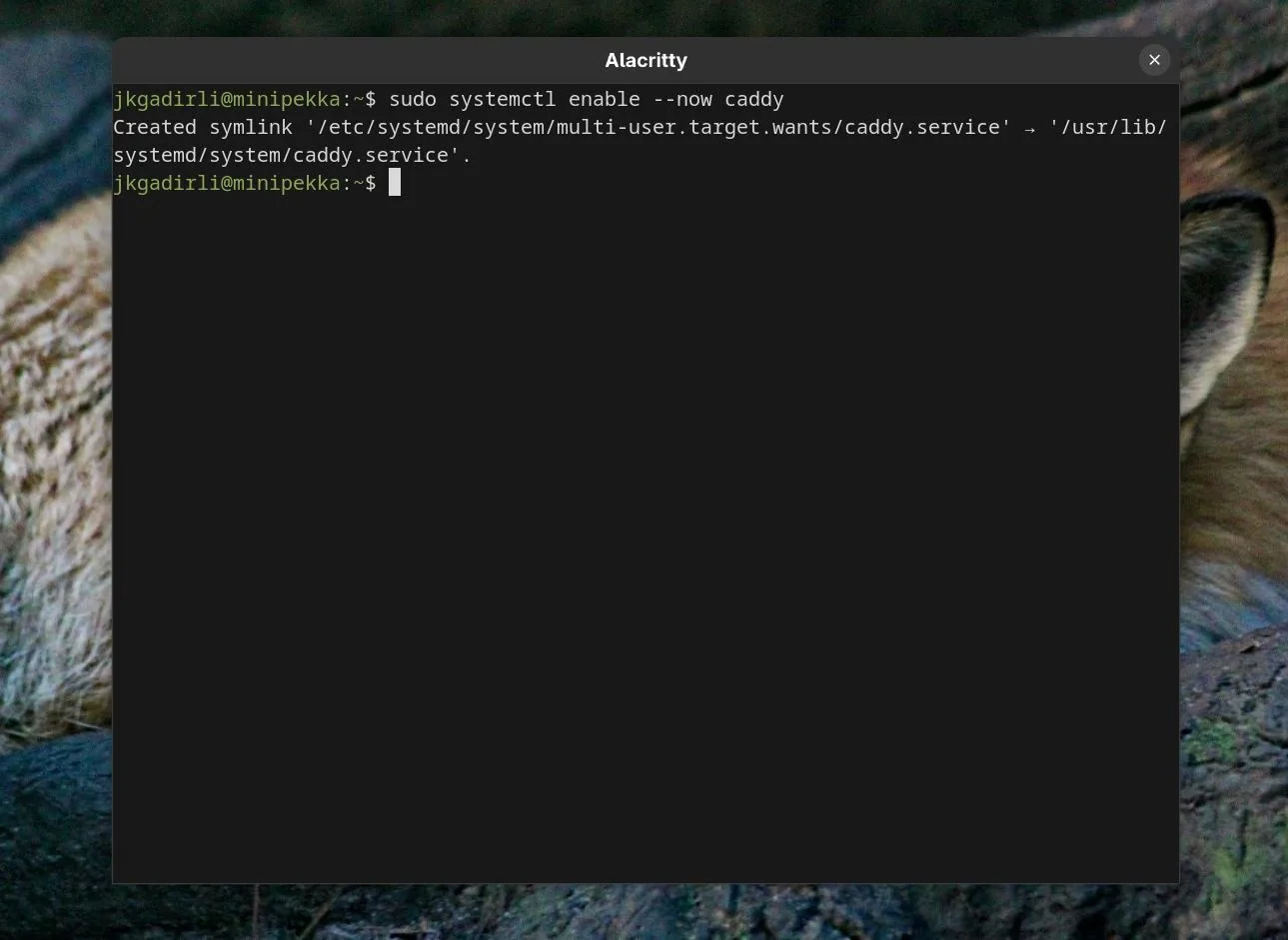
Guys, actually i won't use Podman or Caddy :D but i wanted to show you have these options.
Tailscale
I can use this server on local network, but i want to control it everywhere i want. For this, we need static ip. I don't have a static ip, so will use Tailscale.
Before we starting, be sure that you have a Tailscale account.
We need to install Tailscale to both machines. I'll start with Server.
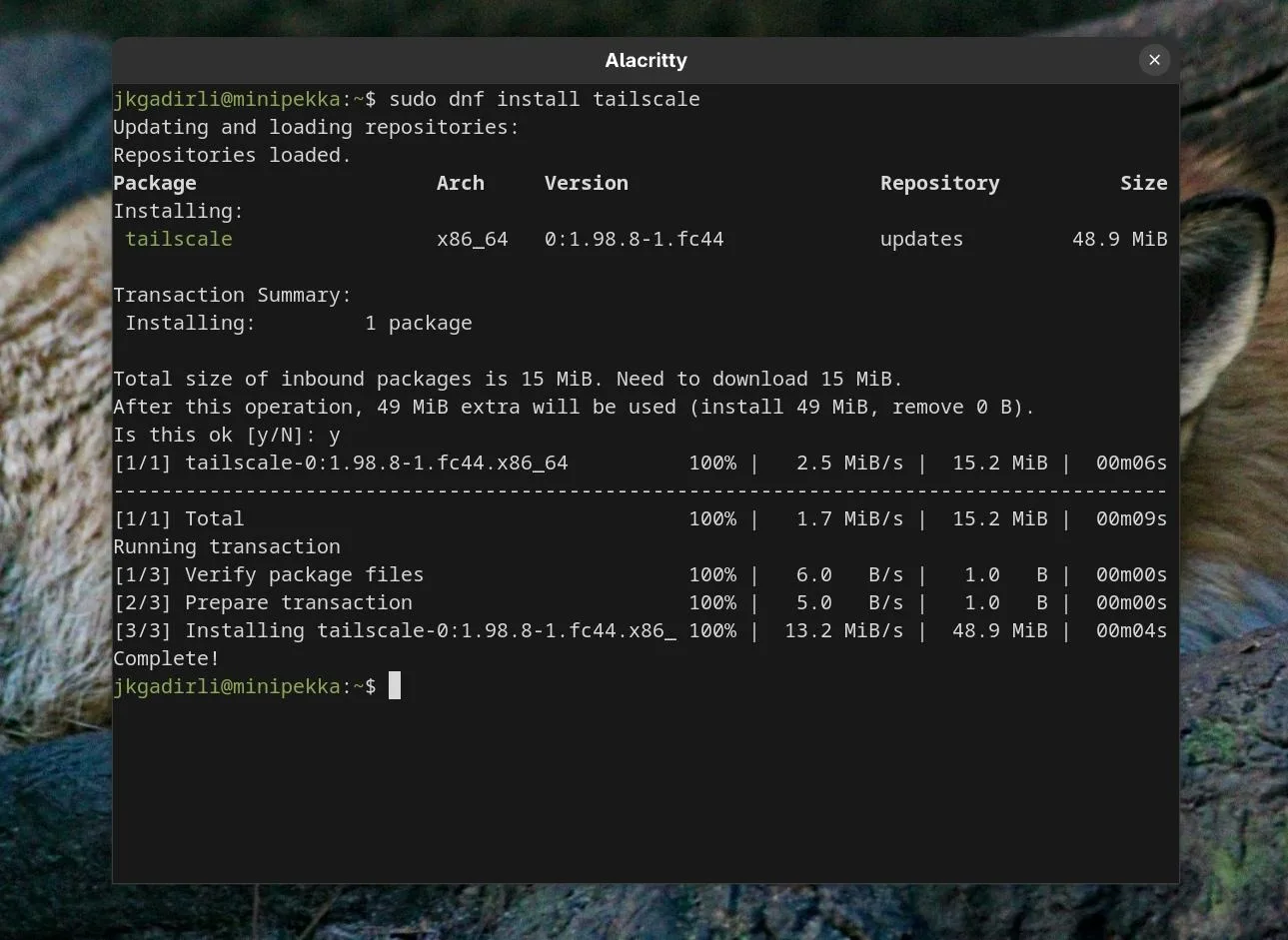
Now we need to connect to our account, i used this command and authenticated with my browser (zen browser btw)
sudo tailscale upand repeat the same for them main PC.
We have access to our server from everywhere we want. We even have a dashboard for our server.
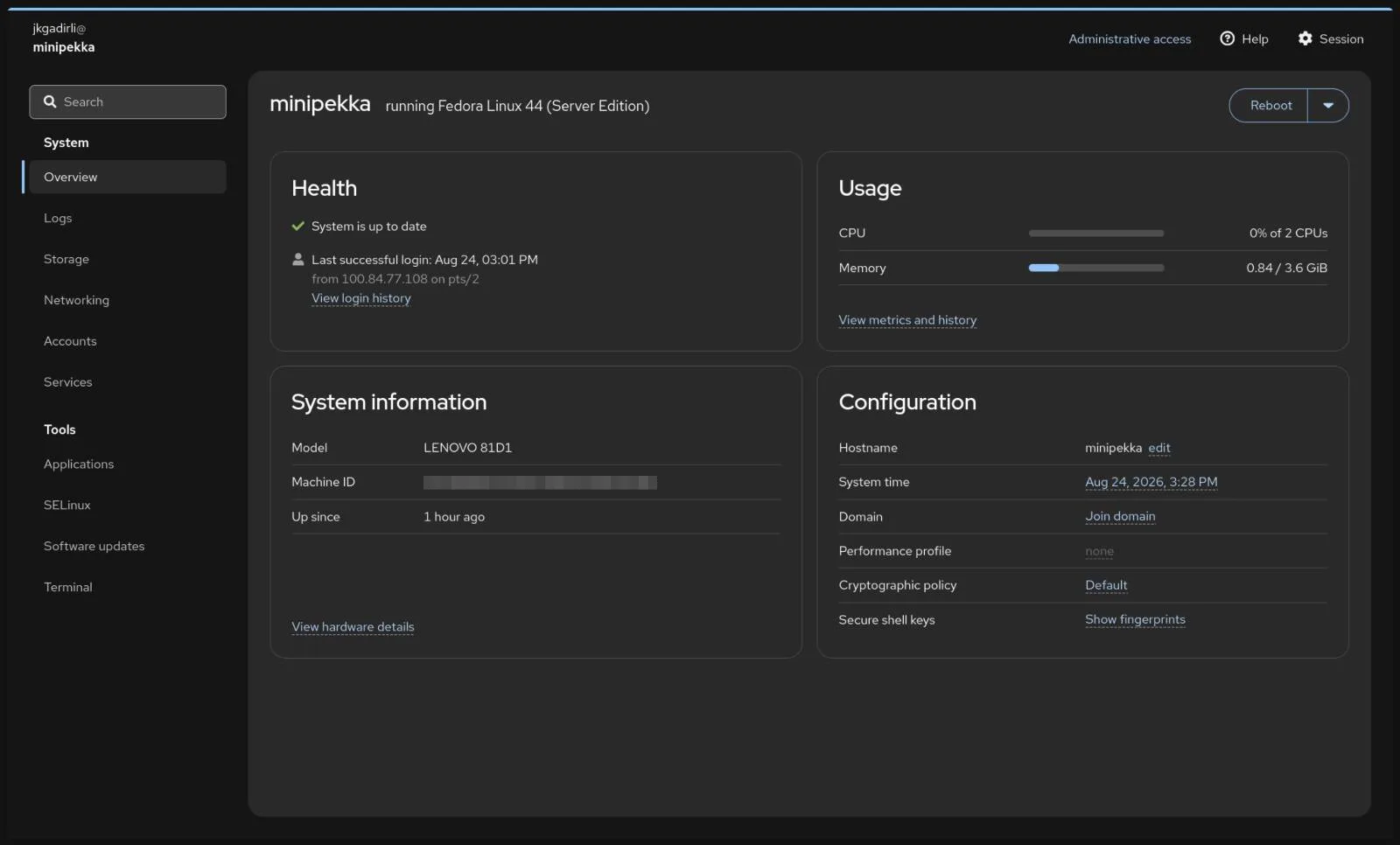
Setup Hermes
We can start Hermes setup with single command in Linux.
curl -fsSL https://hermes-agent.nousresearch.com/install.sh | bashIt will ask some questions i wizard. For most questions you can just choose the default one. In provider section, you can bring you subscription or API key. I will continue default free Hermes subscription.
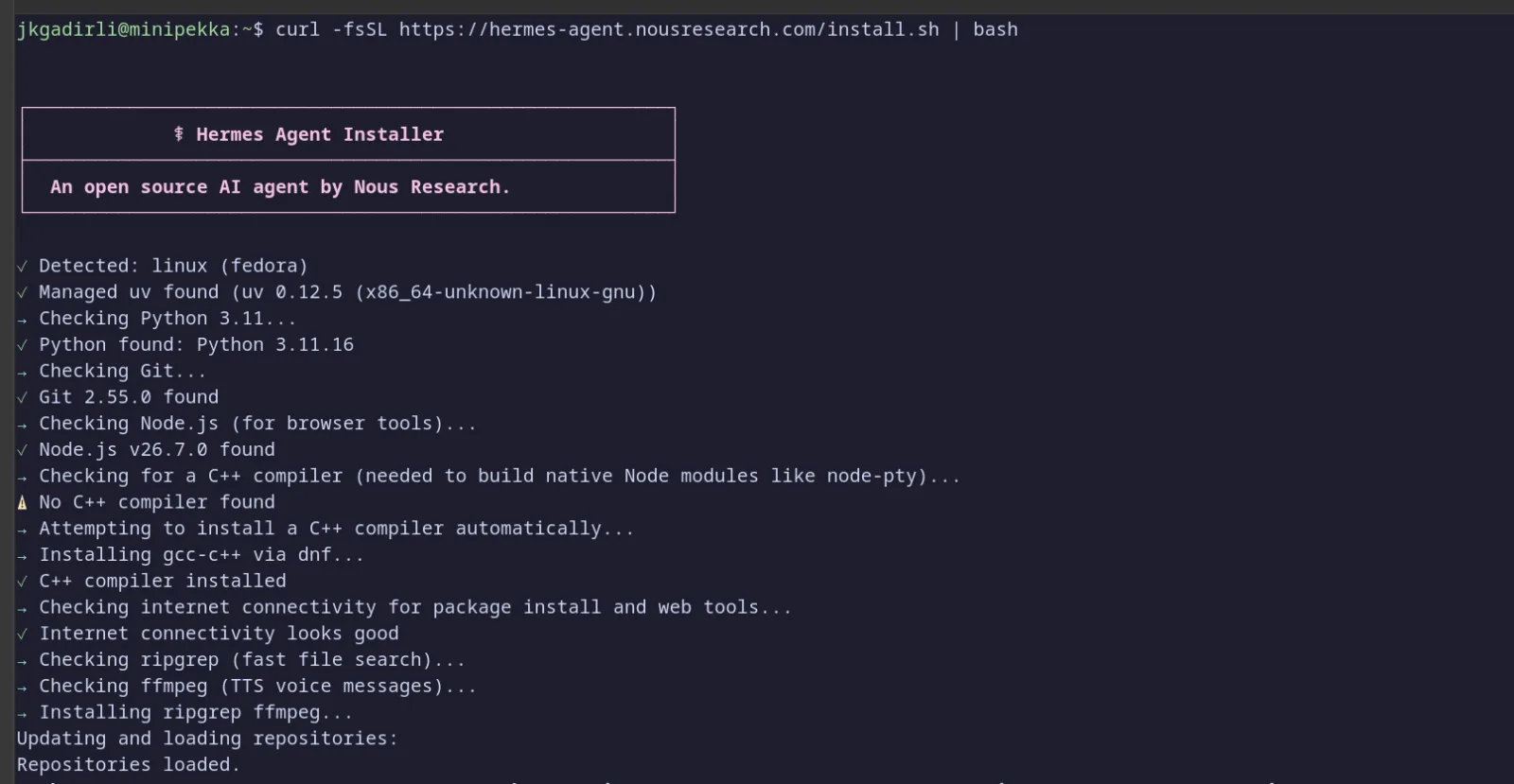
In the last step, you choose your communication way with Hermes agent. You can choose default TUI. I'll go with Telegram bot option. There's an easy option for it.

Now we can talk with our Telegram bot and control our server.
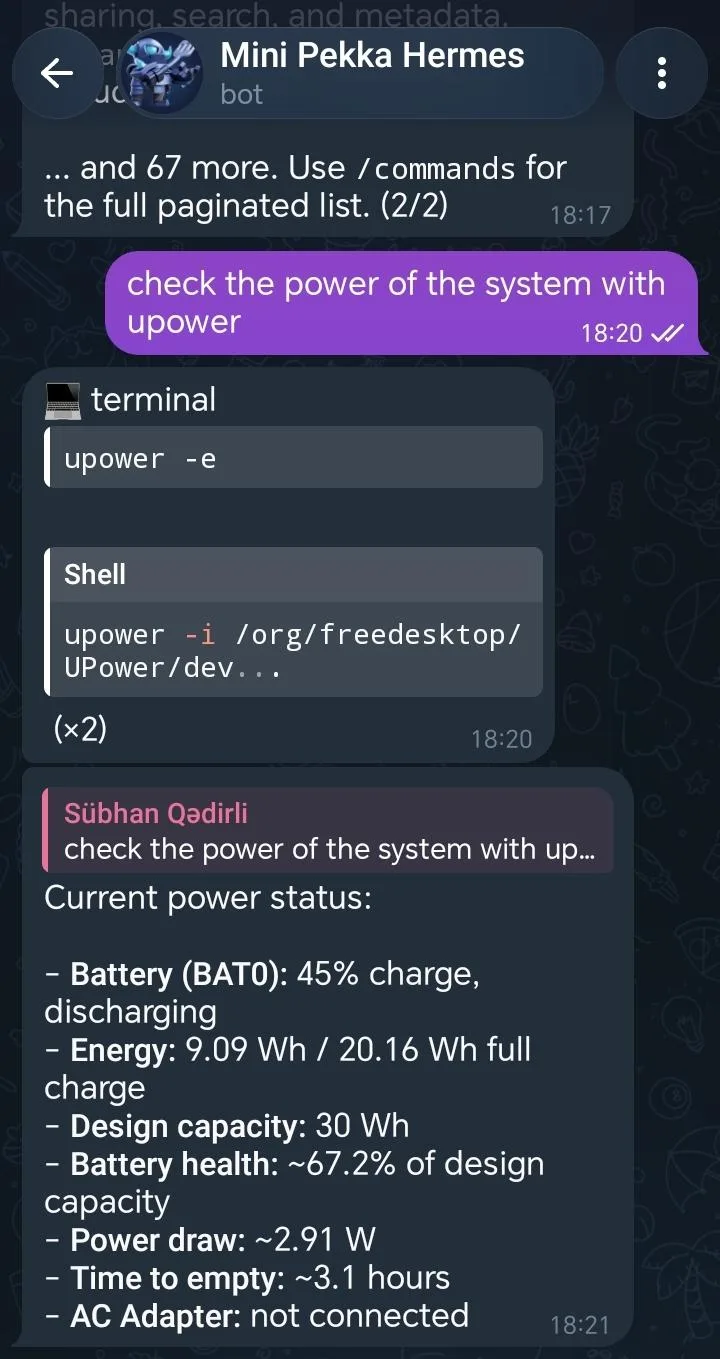
Finally we turned our old laptop to home for our Hermes agent and can control it from any where with ssh and Telegram bot interface of the agent. You can follow my blog that type of posts.